Network
Selecting Devices
At the top of the page, you’ll find the Device Selection panel, which lists all detected Android devices. Each card displays:
- Device ID / IP address
- Connection type (Wi-Fi, USB, or LAN)
- Model name (e.g.,
samsung SM-F721U) - Status indicator confirming connectivity
You can:
- Select all to configure every device at once
- Select specific devices for individual Wi-Fi setup
Connecting Devices to Wi-Fi
The Wi-Fi Configuration section allows you to input network details. The Available Networks panel on the right scans nearby Wi-Fi SSIDs, which you can select instead.
| Field | Description |
|---|---|
| SSID (Network Name) | Enter your Wi-Fi network name or select from the list of scanned networks. If it contains spaces, you may need to wrap it in quotes "My WiFi Network". |
| Security Type | Choose the correct encryption (use WPA/WPA2/WPA3 for default)./ |
| Password | Enter the Wi-Fi password. |
| Connect to WiFi | Your devices will attempt to connect to the network. |
Example Workflow:
- Connect devices via USB.
- Open Network Configuration
- Select one or more devices from the list.
- Choose or enter your Wi-Fi SSID and password.
- Click Connect to WiFi.
- Wait for the connection status to update for each device.
When Not to Use
Only Network Configuration under these conditions:
- Devices are connected via USB
- You want to connect them to a new Wi-Fi network to connect to the internet
Do not use this feature if your devices are currently connected wirelessly to ADB through Wireless Debugging, whether over Wi-Fi or Ethernet. Changing networks while your devices are connected to the software in these modes will disconnect them and require using USB mode reconfigure to a network. If your devices are already in wireless mode, Cellhasher will automatically show this alert:
“Changing the Wi-Fi network while in wireless mode may disconnect the device.”
If your devices do get disconnected, refer to connection-modes-wi-fi-and-ethernet.md to reconnect.
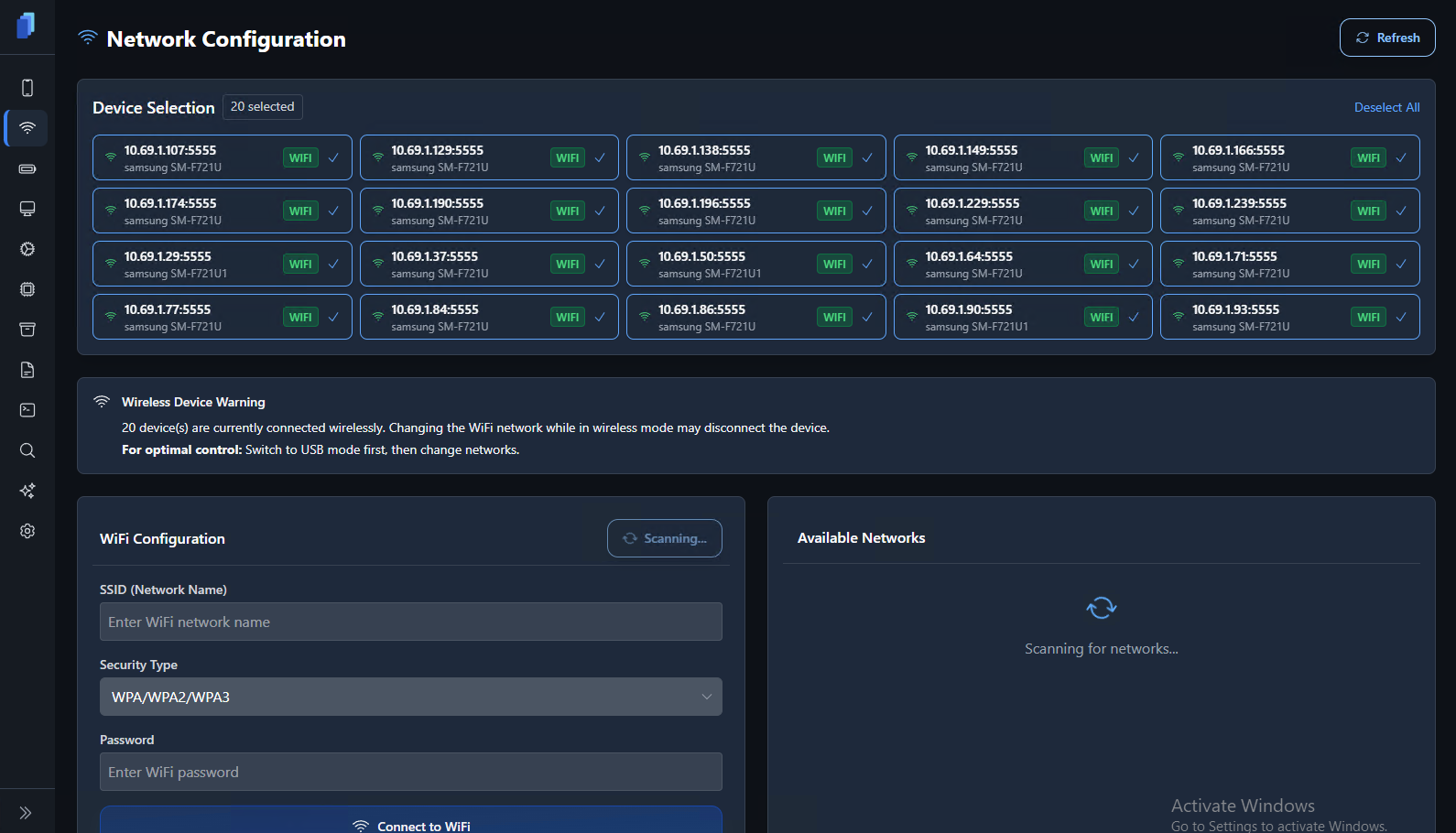
You will see "WIFI" status if any devices are connected to Cellhasher Control over network.
Troubleshooting - Device Not Connecting
ℹ️ Note: This step is often required on devices running Android 10 or higher.
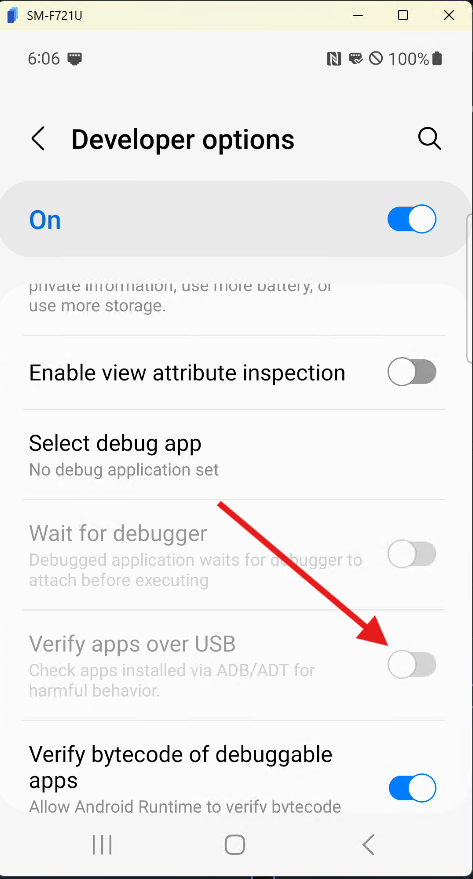
If devices fail to connect to Wi-Fi, Android’s security settings may be blocking installation of the Wi-Fi helper APK. This helper app is required to transmit network credentials securely to Android.
To fix this issue:
- On the device, open Settings → Developer Options.
- Scroll down and locate Verify apps over USB.
- Turn this off. This allows the helper APK to install correctly.