Mirror
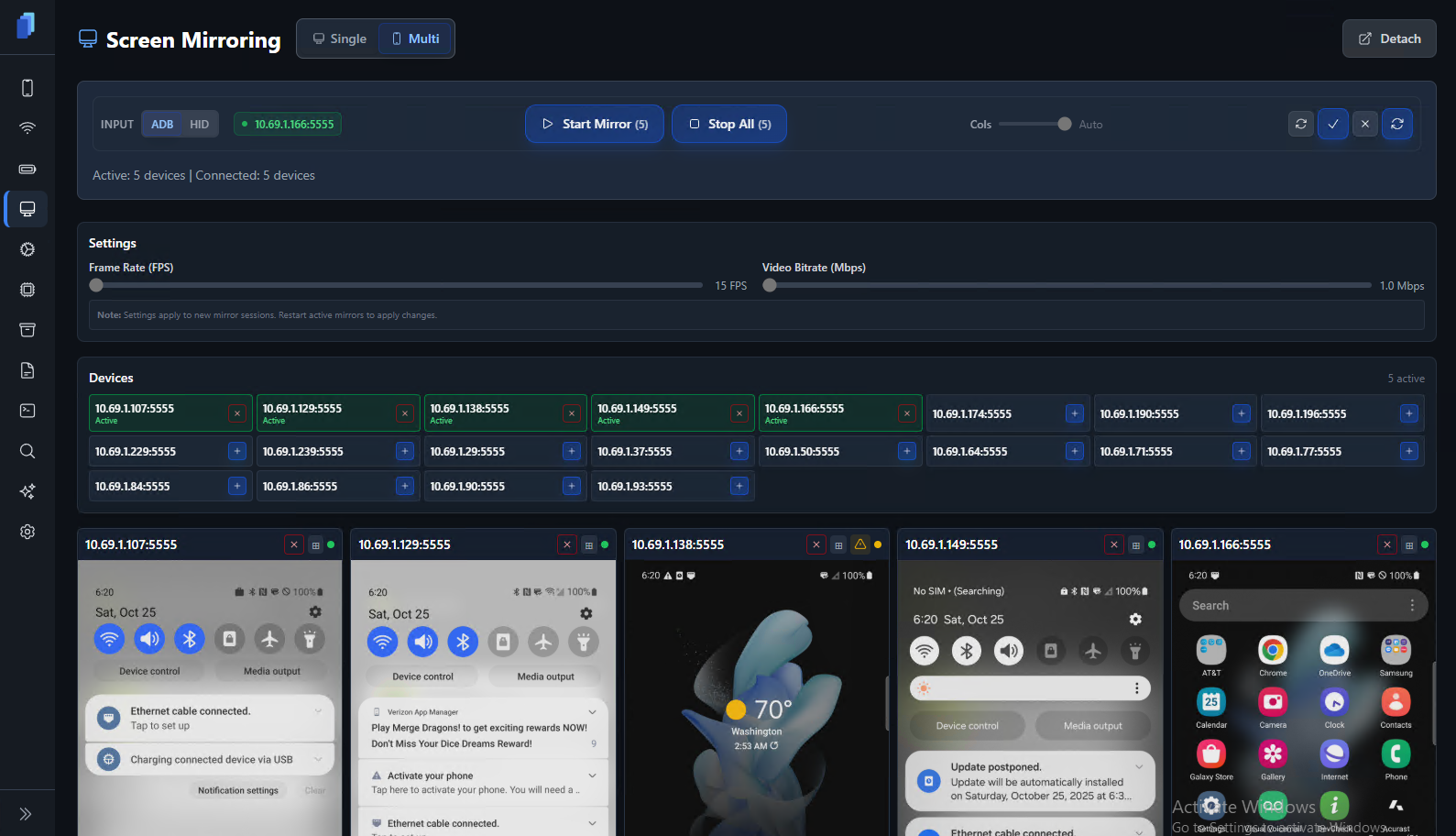
View of Screen Mirroring tab
Interface Overview
From this page, you can:
- Mirror one or many devices simultaneously
- Interact live using tap, swipe, scroll, or type actions
- Adjust frame rate (FPS) and bitrate (Mbps) for performance or clarity
- Manage individual or grouped mirrors with quick start/stop controls
Mirror Modes
- Single Mode: View and control one device at a time
- Multi Mode: Mirror and interact with multiple devices simultaneously (performance depends on your GPU specs)
Settings Controls
Fine-tune your stream for quality or performance:
- Frame Rate (FPS): Adjust smoothness (default 15 FPS)
- Video Bitrate (Mbps): Adjust video clarity (default 1.0 Mbps)
Restart mirrors to apply changes.
Mirroring View
During an active mirroring session, each device is mirrored in real time, you can:
- Interact with the screen (tap, swipe, pinch, type)
- Resize or rearrange mirrored windows
Detach
Detach mirrors into a new window using Detach for split screen or multi-monitors.
ℹ️ Upcoming Enhancements
Features are actively evolving. Future updates plan to include:
- Group Control Gestures — Control multiple devices with a single user-initiated touch or swipe.
- Automated App Launch — Start identical apps across all mirrors at once.
- Optimized GPU Rendering — Seamless support that consume less GPU resources.
How to Mirror Devices
- Connect your devices (via USB, Ethernet, or Wireless ADB).
- Open the Mirror tab.
- Choose Single or Multi mode.
- Select the device(s) you want to mirror.
- Adjust FPS and Bitrate if needed.
- Click Start Mirror.
- Interact live on-screen — all actions are reflected instantly.
Recommended Settings and System Requirements
Each active mirror consumes CPU and GPU power. If you experience lag:
- Lower the FPS (10–15 recommended)
- Reduce Bitrate (0.8–1.0 Mbps)
- Limit the number of simultaneous mirrors
| Number of Devices | Recommended GPU | Expected Performance |
|---|---|---|
| 1–20 | RTX 3060 / 4070 / RX 6800+ | Ideal for enterprise or mining cluster visualization |
| 20–100 | RTX 4080 / 5080 / RX 7900 XT or greater | High-end scalable performance for extensive clusters, with 60+ FPS in complex visualizations |
| 100–1000 | RTX 5090 / A6000 or multi-GPU setups (e.g., 2+ high-end cards) | Enterprise performance for massive data center-scale operations |
| 1000+ | High-end Multi-GPU installation |
Troubleshooting
Black screen / No feed
- Check your Scrcpy path in Settings → System Paths to see if it's correct. See more in settings.md.
Lag or slow responses
- Most likely is too high of FPS and bitrate causing low GPU resources. Try redcucing FPS/Bitrate and restarting all mirroring sessions.
Sporadic touch response
- Your device may be experiencing "ghost taps" from the metal chassis caused from imperfect grounding. This can happen if the Cellhasher is plugged into a power strip or outlet adapter.
Mirror stops randomly
Low GPU resources or a sporadic USB or wireless connection may have halted the stream and you need to intiate a refresh using the refresh button on the device card, or refresh all at the top of the pgae.