Devices
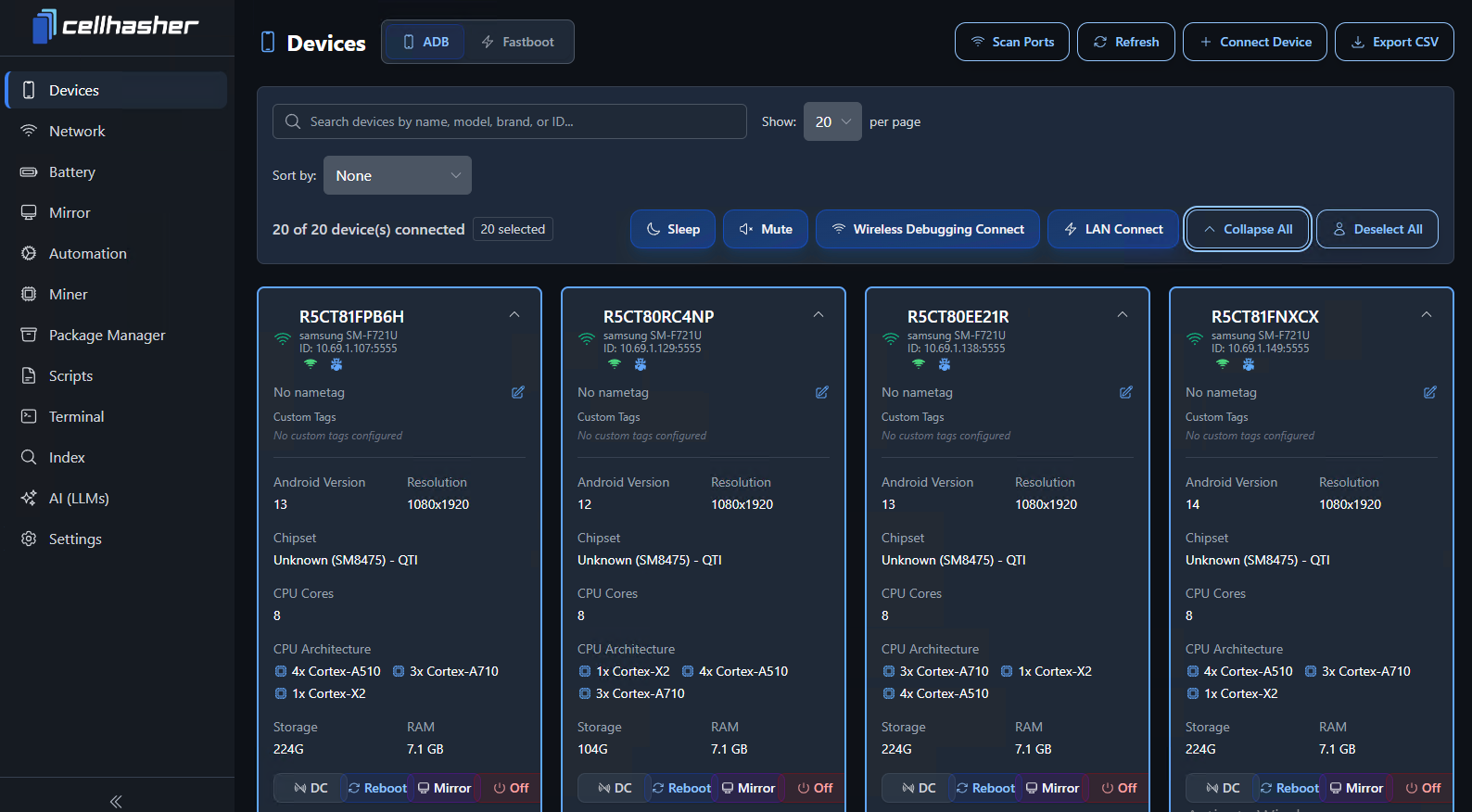
What You See Here
Each device card displays critical information about every connected Android device:
Bulk Management Tools
At the top of the page, you’ll find a set of controls that allow you to manage multiple devices at once:
| Button | Function |
|---|---|
| Scan Ports | Scans for all connected devices (USB, Wi-Fi, or Ethernet). |
| Refresh | Refreshes all connected devices and updates status info. |
| Connect Device | Manually connect a specific device by ID or IP. |
| Export CSV | Export all device data (IDs, tags, models, etc.) into a .csv file. |
| Sleep / Mute | Send sleep or mute commands to selected devices. |
| Wireless Debugging Connect | Connect devices over Wi-Fi mode using TCP/IP debugging. |
| LAN Connect | Switch connected devices to Ethernet (OTG) mode for remote, cable-free operation. |
| Collapse All / Deselect All | Simplify the view by collapsing or clearing selected devices. |
Connection Types
Devices can connect through a few different modes, shown by the icons next to the device ID.
- 🔗 Direct Connection — Fastest, direct data transfer to the host PC.
- 🛜 Network Connection — Requires TCP/IP setup; can be used over Wi-Fi or Ethernet.
For detailed information go to connection-modes-wi-fi-and-ethernet.md
Sorting, Searching, and Selecting
You can easily organize or manage large numbers of devices using built-in sorting and filtering:
- Search Bar — Search by device name, brand, model, or ID.
- Sort Dropdown — Sort devices by Android version, tag, or ID.
- Show per page — Choose how many devices display per page (e.g., 10, 20, 50).
- Select / Deselect All — Quickly select every visible device for group actions.