Settings
Configuring System Paths
Before using most features in Cellhasher Control, your system paths must be set correctly. These paths tell the software where to find required executables like ADB, Fastboot, and Scrcpy.
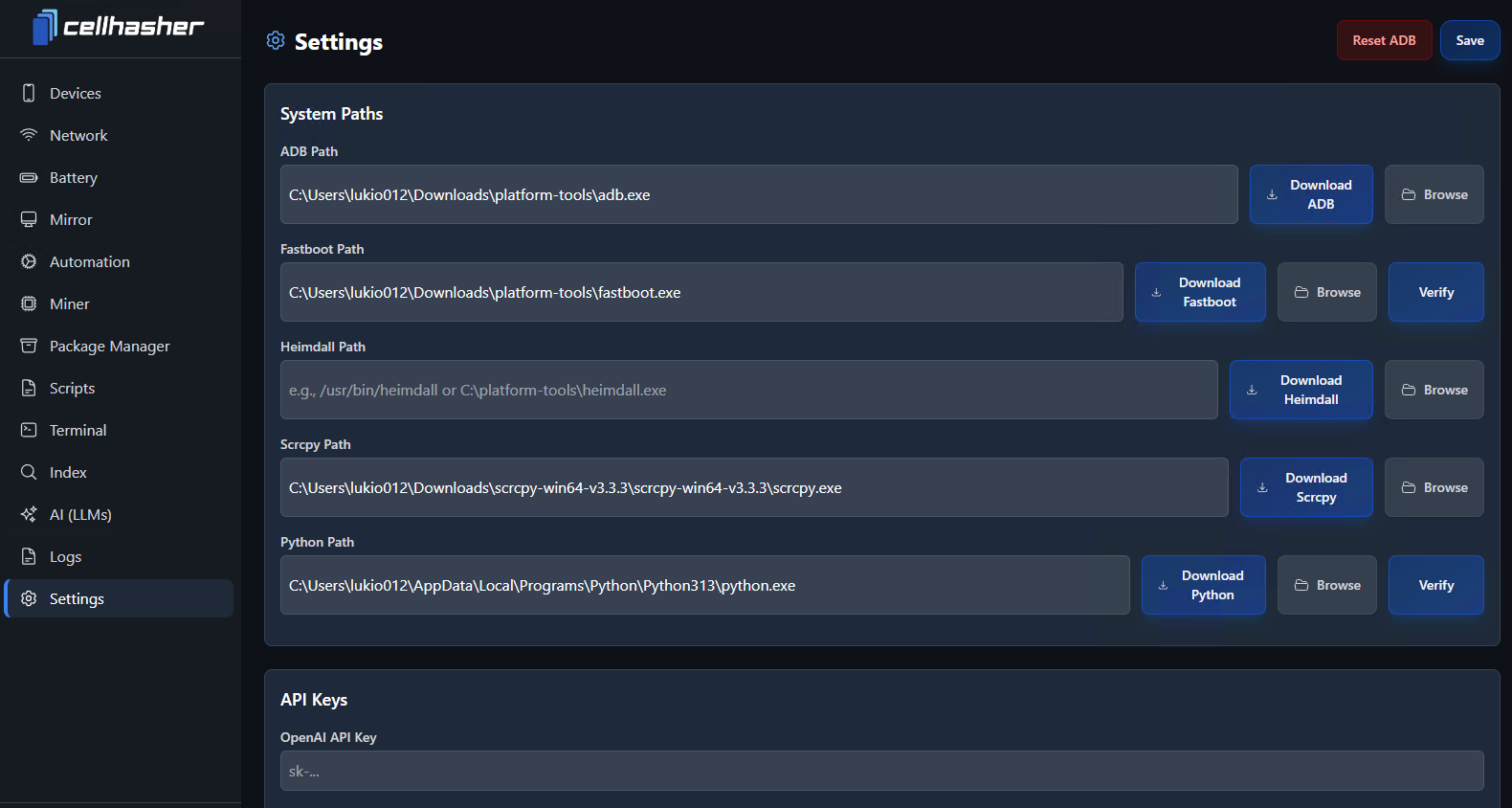
Download and Set Paths
If you don’t already have these installed or don’t know where to find them:
- Click the Download button next to each tool. Cellhasher will automatically fetch and install the latest version for your system.
- For the applicable downloads, extract the
.zipfile. - Set the path of the
.exefor each line.
Redownload the latest versions occasionally for best performance and compatibility
| Tool | Description | Example Path |
|---|---|---|
| ADB | Core tool used to communicate with Android devices. | C:\Users\<username>\platform-tools\adb.exe |
| Fastboot | Used for bootloader and flashing operations. | C:\Users\<username>\platform-tools\fastboot.exe |
| Heimdall (Optional) | Used for Samsung flashing. | C:\platform-tools\heimdall.exe |
| Scrcpy | Required for screen mirroring and control. | C:\Users\<username>\Downloads\scrcpy-win64-v3.3.3\scrcpy.exe |
| Python (Highly recommended) | Enables scripting, automation, and custom flows. | C:\Users\<username>\AppData\Local\Programs\Python\Python313\python.exe |
API Keys (AI Integration)
In upcoming releases, Cellhasher AI will introduce advanced features for:
- Device diagnostics
- Automated optimization
- Predictive management
You’ll be able to add your OpenAI, Mistral, or other API keys in this section to enable AI-based control, automation, and natural-language scripting.
ADB Key Management
This is where you manage the key files that allow ADB to control your phones. Each phone has a key, stored in both adbkey and adbkey.pub files. If you have ADB Keys from another computer or source, you can import them here.
Cellhasher purcahses with phones pre-installed come with ADB Authoization Keys. Import the key files here.
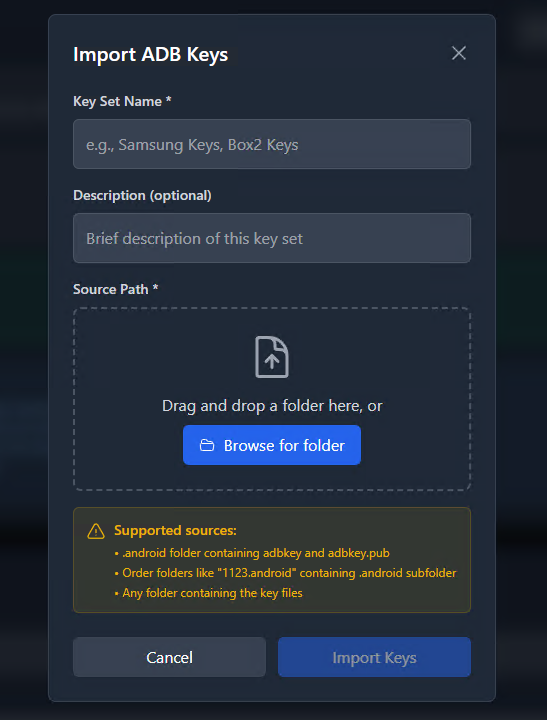
Check Enabling USB (and Wireless) Debugging for more information. Your device may already be included in the current key set if you do not see an authorization prompt.
Reset ADB
Click the red “Reset ADB” button at the top right if devices fail to appear or ADB gets stuck.
How to Find Your ADB Key Files
If you’d like to import your existing ADB keys into CellHasher Control (to avoid physically approving devices again), you can find them in your system’s hidden .android folder.
Here’s where to look:
| OS | Path to ADB Keys |
|---|---|
| Windows | C:\Users\<YourUsername>\.android\ |
| MacOS | /Users/<YourUsername>/.android/ |
| Linux | /home/<YourUsername>/.android/ |
Inside that folder, you’ll find two key files:
adbkey
adbkey.pub
To Import in Cellhasher Control:
- Open Settings → ADB Keys.
- Click Import ADB Key.
- Select both
adbkeyandadbkey.pub. - Restart Cellhasher Control to apply the keys.
If you don’t see the .android folder, enable Show Hidden Files in your system file explorer.