Package Manager
Overview of Package Manager
The Package Manager is made of 3 tabs:
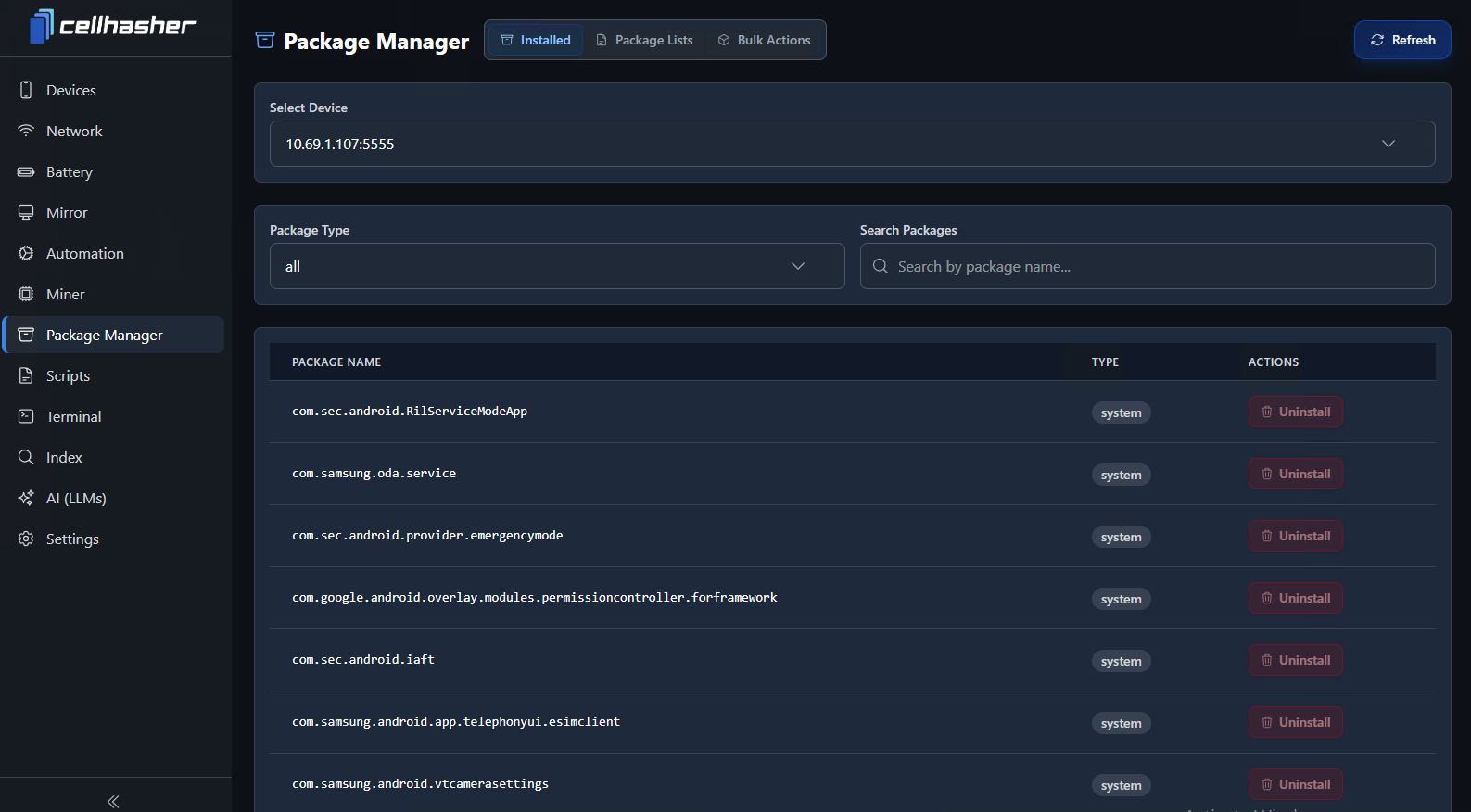
Installed → Browse all files/apps on a device
Package Lists → Build a list of multiple packages to remove at once
Bulk Actions → Uninstall packages from a list, or install a package from an APK.
Installed
Here you can browse and find all files and apps on a selected device. Use the filter to view system, user, or root packages to understand what’s safe to remove.
You'll likely want to remove bloat on your device, so use this tab to first make a list of the packages you'd like to remove.
Uninstalling system apps is greyed-out for safety as removing the wrong one could permanently brick your device. Advanced users can use the terminal tab to manually remove system apps at their own risk.
We hope to soon add file/app icons and names for easier identification.
Package Lists
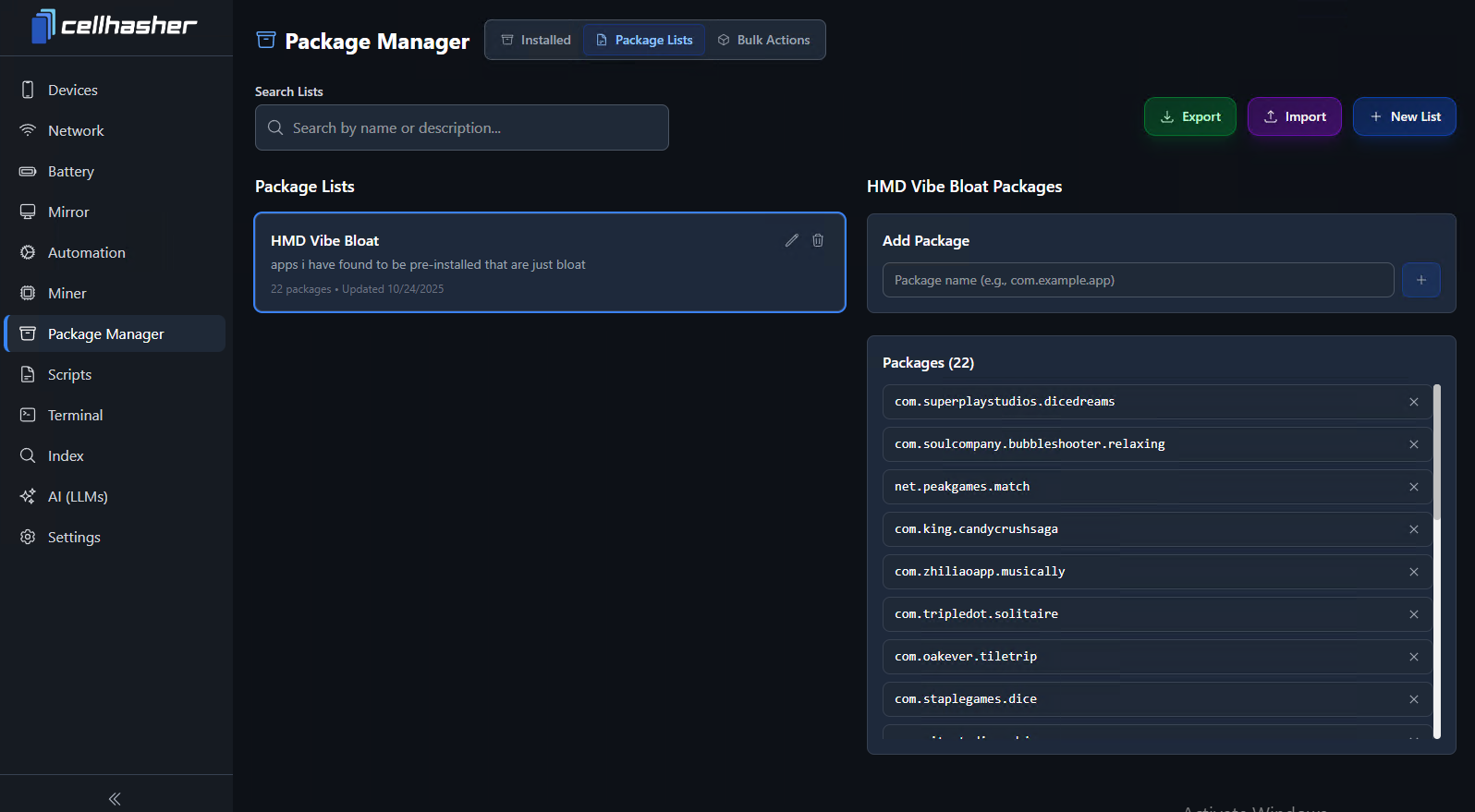
Create and save lists of packages. The most common use is for removing bloatware across multiple devices.
Each list can contain any number of package names, and can be exported or imported. Use the Add Package field to add package names, or import/export lists to share across setups.
This makes it easy to build and reuse bloat-removal profiles or create pre-deployment cleanup templates for new phone batches.
Bulk Actions
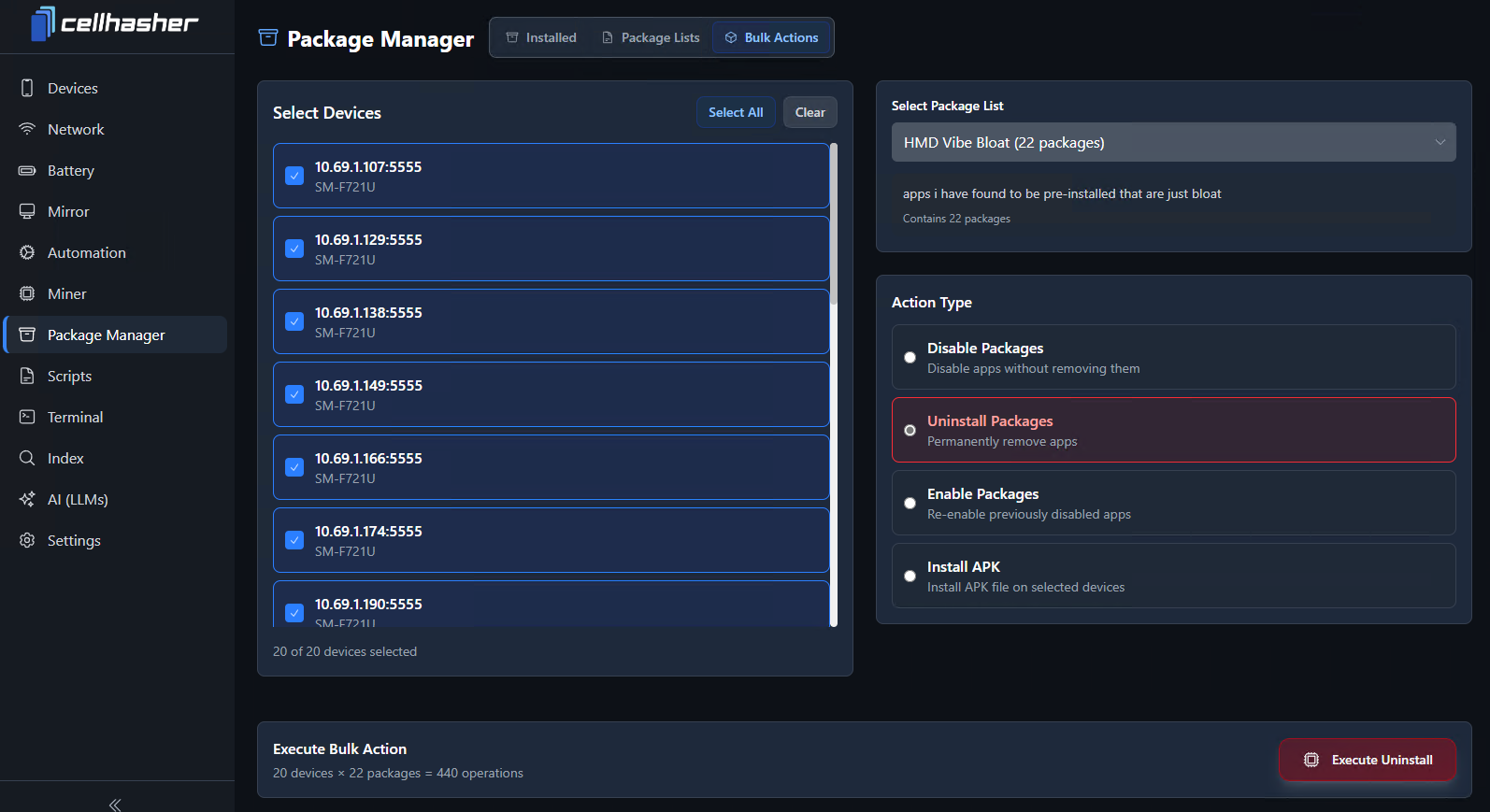
Bulk Actions let you disable, enable, uninstall, or install APKs across multiple devices at once.
You can select one or more devices, choose a package list, and execute your desired action.
The Bulk Actions tab shows connected devices, action type, and confirmation summary before execution.
You will recieve a confirmation dialog which lists exactly which devices and which packages are affected before you proceed.
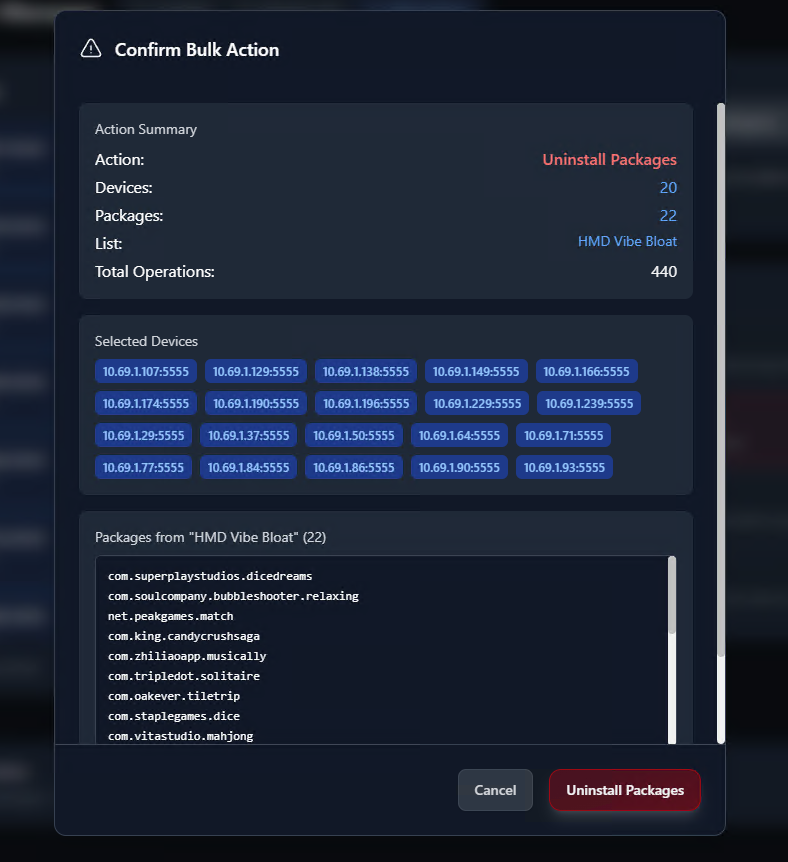
Example confirmation window: shows selected devices, total packages, and operations before uninstall begins.