Battery
Battery Overview & How to Use
Spoofing the battery level is useful for stable, long-running device life. Android phones will still routinely self-check the battery state even when hard-wired by a BMS cable. The system often can't determine the state of the battery and maybe shut itself down or throttle operations.
Why spoof battery level (and how it helps)
By not spoofing the battery level, a phone often encounters the following:
- Force reboots
- Performance throttling due to triggered thermal or low-battery protection
- Halting background tasks or automation flows
By spoofing the level values you:
- Prevent unexpected reboots
- Maintain maximum performance
- Avoid operating system safety features that would otherwise interrupt automations
tip
Recommended Levels
- Battery Level:
100% - Battery Temperature:
~25°C - AC Charging: Enabled (if chassis supplies power)
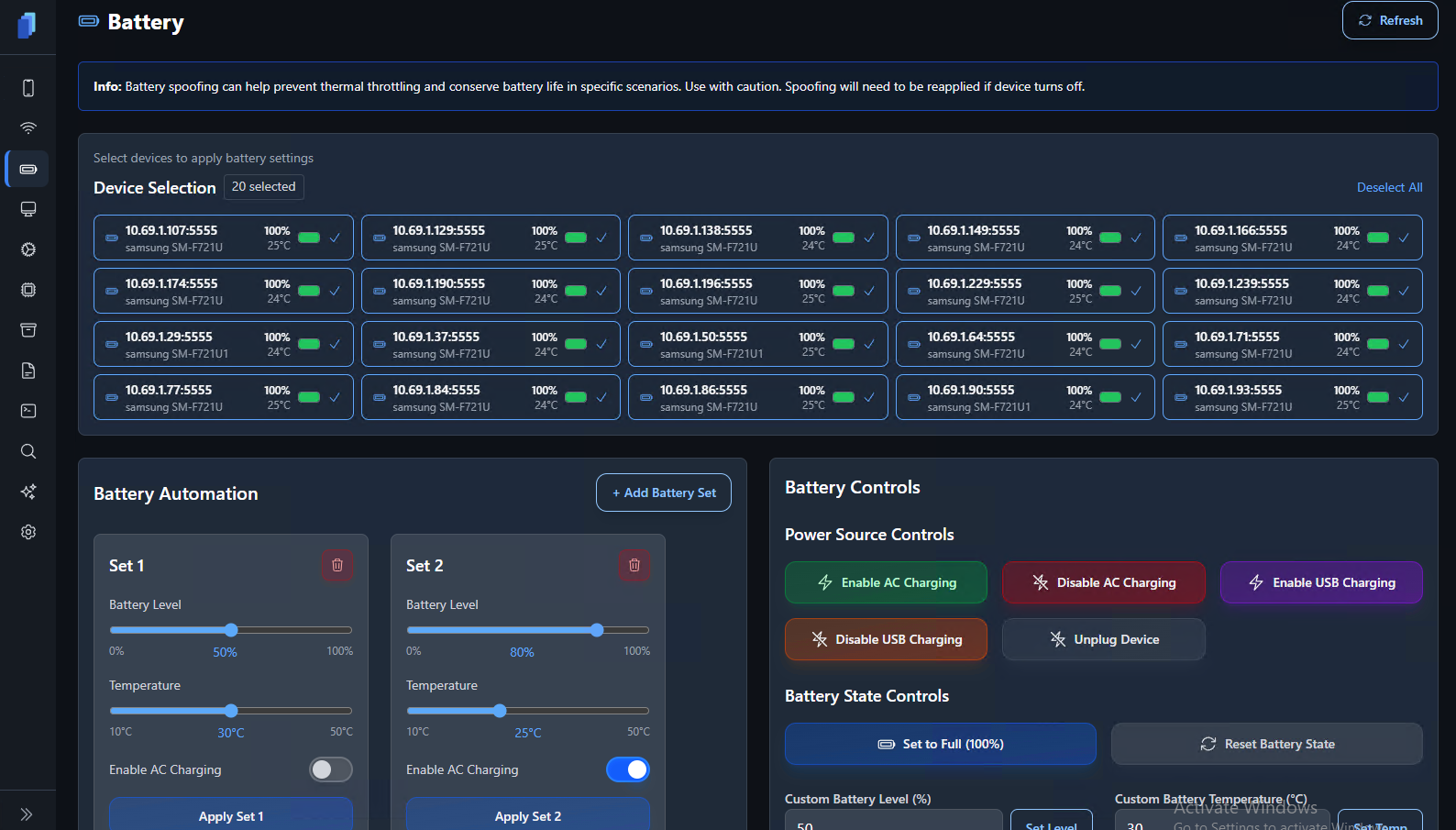
View of the Battery Tab
Quick Actions
- Set to Full (100%) — Instantly sets selected devices to 100% battery. Use for immediate stabilization.
- Reset Battery State — Clears spoofing and returns devices to their real readings. Use only for testing or troubleshooting.
- Enable/Disable AC or USB Charging — Toggle charge source simulation to match your physical setup.
- Custom Level / Temp — Enter a numeric value and click Set Level / Set Temp to apply a one-off spoof.
How to use Battery Automation
- Select devices at the top (individual cards or Select All).
- Under Battery Automation, either:
- Use an existing set (click Apply Set)
- Or create a new set: click + Add Battery Set, choose level & temp, toggle AC charging, then Save.
- Click the set’s Apply button — the selected devices will receive the spoofed battery values.
- Verify device cards update to show the new battery % and temperature.
Automating re-application
For instances where devices may reboot, create an Automation Flow that:
- Waits for device online event
- Applies your preferred Battery Set (100% / 25°C / AC on)
- Logs success and retries on failure
This prevents manual intervention after reboots and keeps fleets stable.
Troubleshooting
Spoof didn’t apply / values unchanged:
- Ensure the device is selected and authorized (ADB keys or USB authorization accepted).
- Check ADB connection (Reset ADB on Settings page if stuck).
- Verify the device supports battery spoofing (some OEM firmwares heavily restrict ADB hooks).
Device reboots after spoof applied:
- Confirm spoof values (set to 100% and 25°C).
- Ensure AC charging is enabled if the chassis supplies power.
- Check system logs (Terminal / Device logs) for OS-level reasons.
Spoof disappears after device restart:
- Battery spoofing is ephemeral — re-apply using an automation set or script at boot. Run a scheduled task to re-apply the set every X hours if your setup resets battery state on reboot.
- Consider adding a startup automation to apply the desired Battery Set on device reconnect.